Standard Operating Procedures
Member Guide
Everything you need to know about using Nattrly as a member — from your first sign-in to booking sessions and staying safe.
1. Getting Started
Nattrly connects you with friendly, vetted Trusted Companions for warm conversations — in person or over video. Here's how to begin:
- Visit nattrly.com and tap "Get Started"
- Sign in with your preferred method — Google, Apple, Facebook, Microsoft, phone number, or email & password
- You'll be guided through a short profile setup (next section)
- Once your profile is complete, you can browse and book Trusted Companions
Multi-Factor Authentication (MFA): For added security, you can enable phone-based MFA from your account settings. We recommend it for all members.
Video coming soon
2. Setting Up Your Profile
A complete profile helps us match you with the right Trusted Companions and ensures a safe experience.
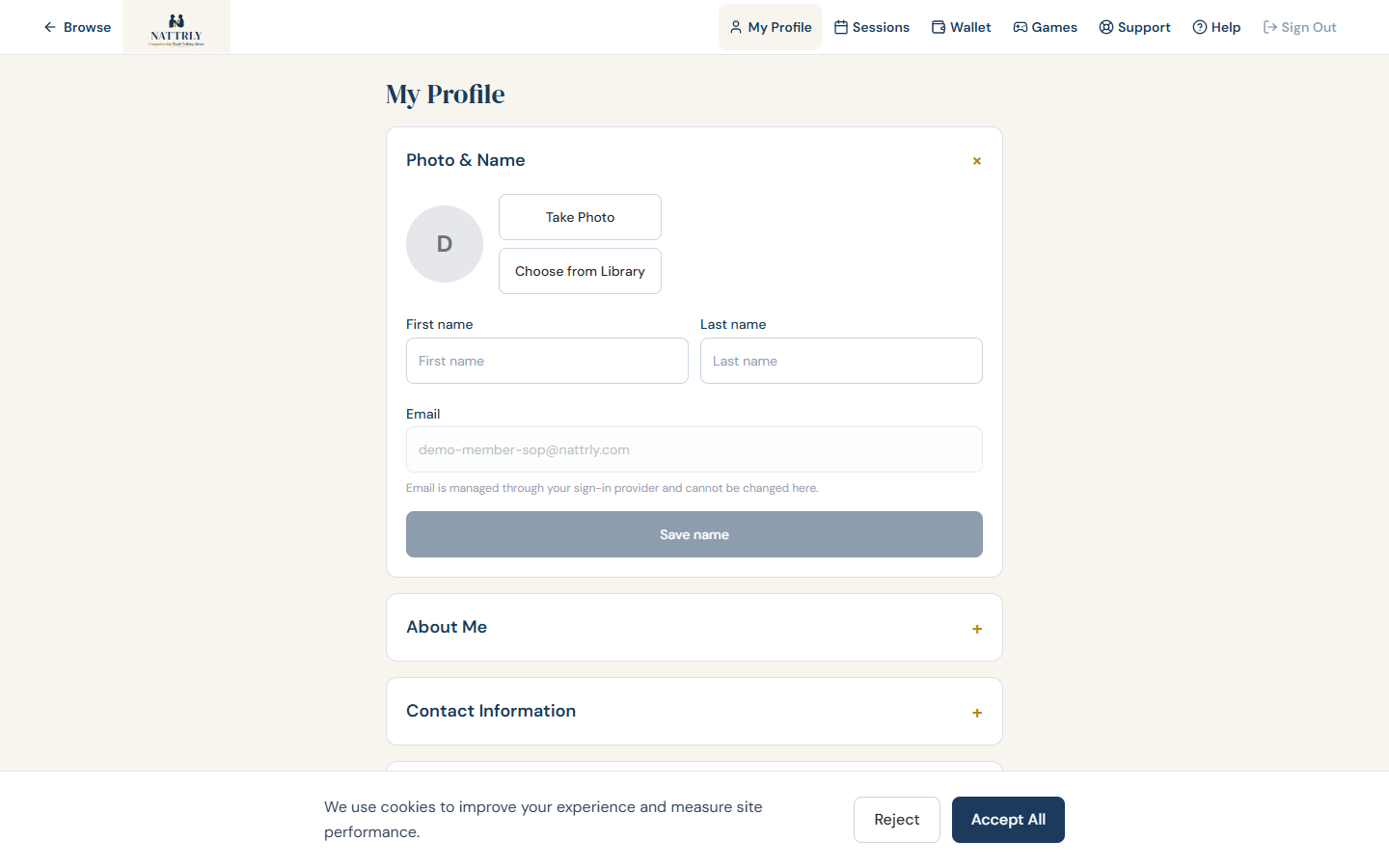
Display Name & Photo
Choose a friendly display name and upload a clear photo. This is how Trusted Companions will recognize you. Your photo is not shared publicly — only visible to Trusted Companions you book.
Bio
Write a short bio about yourself — what you enjoy, what you'd like to talk about, or anything you want Trusted Companions to know. This helps break the ice!
Phone & Address
Your phone number lets us reach you about session updates. Your address helps us match you with nearby Trusted Companions for in-person visits. This information is never shared publicly. You must be 21 or older to use Nattrly — you will be asked to provide your date of birth during onboarding.
Interests & Preferences
Select topics you enjoy — sports, music, gardening, cooking, movies, and more. We use these to match you with Trusted Companions who share your interests, so conversations feel natural and enjoyable. You can also suggest new interest topics for the community.
Accessibility Needs
Let us know if you use a hearing aid, mobility aid, or have other accessibility needs. This information is shared with your Trusted Companion before the session so they can be fully prepared.
Emergency Contacts (Required)
Add at least one emergency contact (up to 3). These are the people who receive an SMS alert if you press the SOS button during a session. Include their name, phone number, and relationship to you.
Video coming soon
3. Browsing Trusted Companions
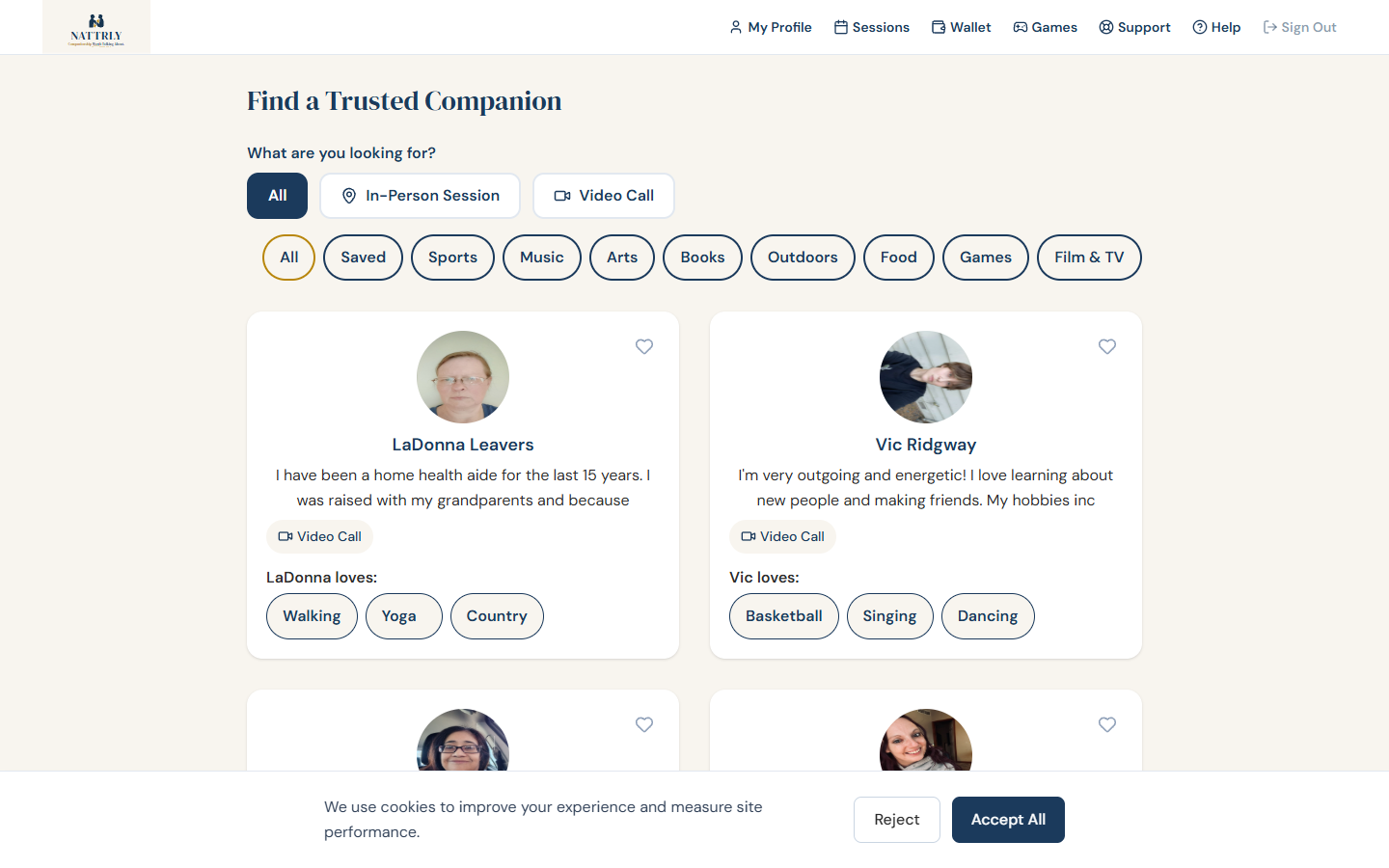
- After signing in, you'll land on the Find a Trusted Companion dashboard
- Use the session type filter at the top to choose: All, In-Person, or Virtual
- Use the interest category chips to narrow by topic (Sports, Music, Arts, etc.)
- Trusted Companions are sorted by shared interests — the best matches appear first
- Tap the heart icon to save a Trusted Companion to your Favorites for easy rebooking
- Tap a Trusted Companion card to view their full profile and book a session
Tip: Every Trusted Companion on Nattrly has passed a rigorous 3-stage verification before being activated: (1) Pipl identity validation, (2) Au10tix ID + face analytics, and (3) KIT Recon full OSINT background check — including criminal records across all 50 states, federal databases, social network screening, and facial recognition. No exceptions.
Video coming soon
4. Booking a Session
- You must be 21 years or older to book a session
- From a Trusted Companion's profile, tap "Book Session"
- Select a date from the Trusted Companion's available days
- Choose a session length — 15 minutes, 30 minutes, 1 hour, or 2 hours
- Optionally add a session note (e.g., "Let's talk about baseball!")
- Review which session credit it uses and tap "Book Session"
- One session from your monthly plan is used for the booking
- The Trusted Companion receives your booking request and can accept or decline
- You'll get an email when the Trusted Companion responds
How sessions are paid for:
- All sessions are virtual video calls
- A 15-minute session uses one 15-minute credit
- A 30-minute session uses two 15-minute credits
- A 1-hour session uses one 1-hour credit (or four 15-minute credits)
- A 2-hour session uses two 1-hour credits
Membership required: Booking uses the sessions included in your monthly plan. You need enough sessions of the right length available. See the Membership & Billing section, or view all plans.
Video coming soon
5. Membership & Billing
How Membership Works
Nattrly is a simple monthly membership. You choose a plan, and each plan includes a set number of virtual sessions every month.
- Each plan includes a set of 15-minute and/or 1-hour sessions
- Booking a session uses one session credit of the matching length
- Your sessions refresh at the start of each monthly billing period
- If a session is cancelled or a Trusted Companion declines, your credit is returned so you can rebook
- A receipt is emailed to you after each completed session
- Sessions are designed to be used within the month — they don't roll over
Managing Your Membership
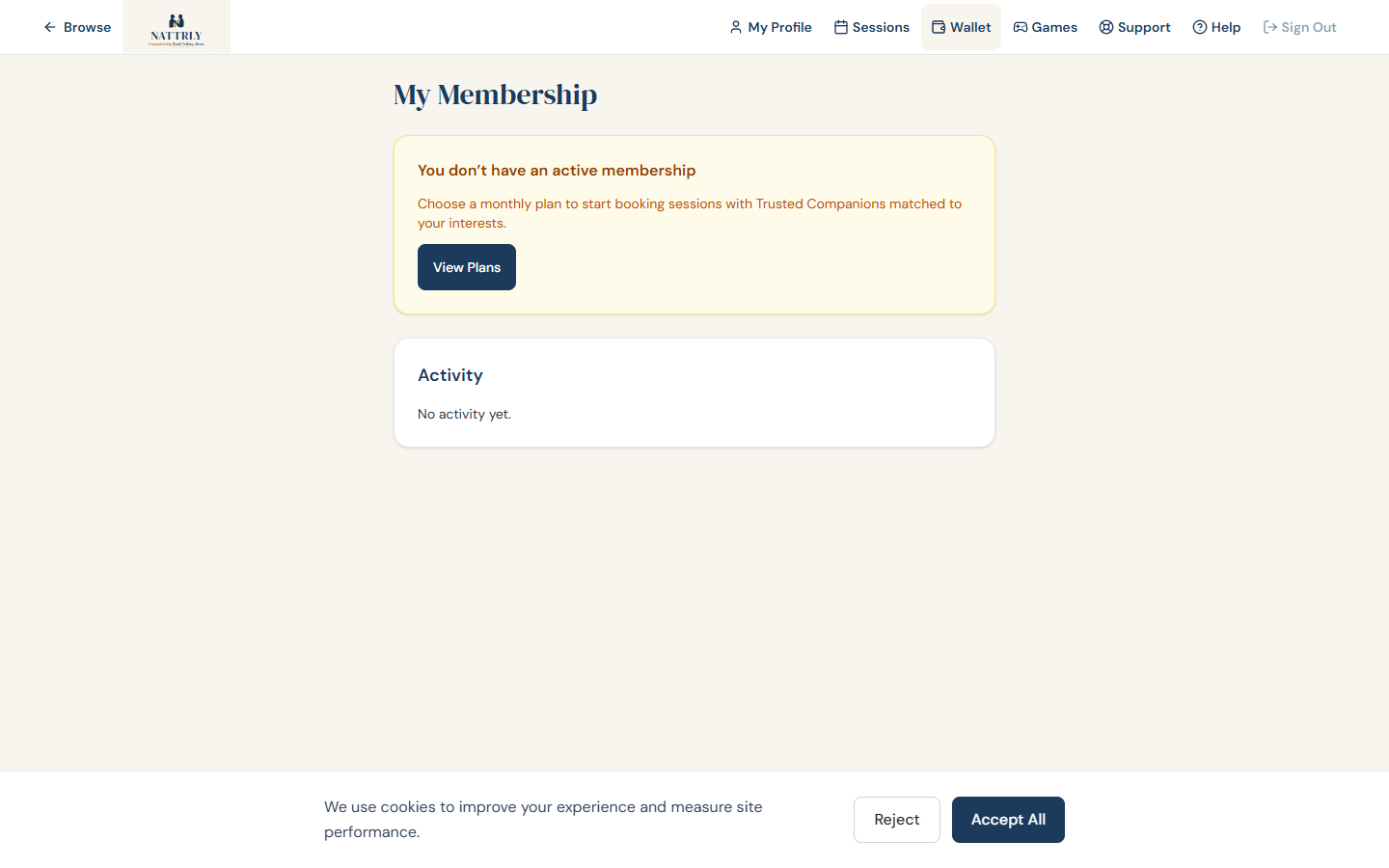
- Go to My Membership in the navigation bar to see your plan and sessions remaining
- Add a credit or debit card; your plan renews automatically each month
- Change or cancel your plan anytime — your current month's sessions stay yours
- View your full activity history in the Membership tab
6. Plans
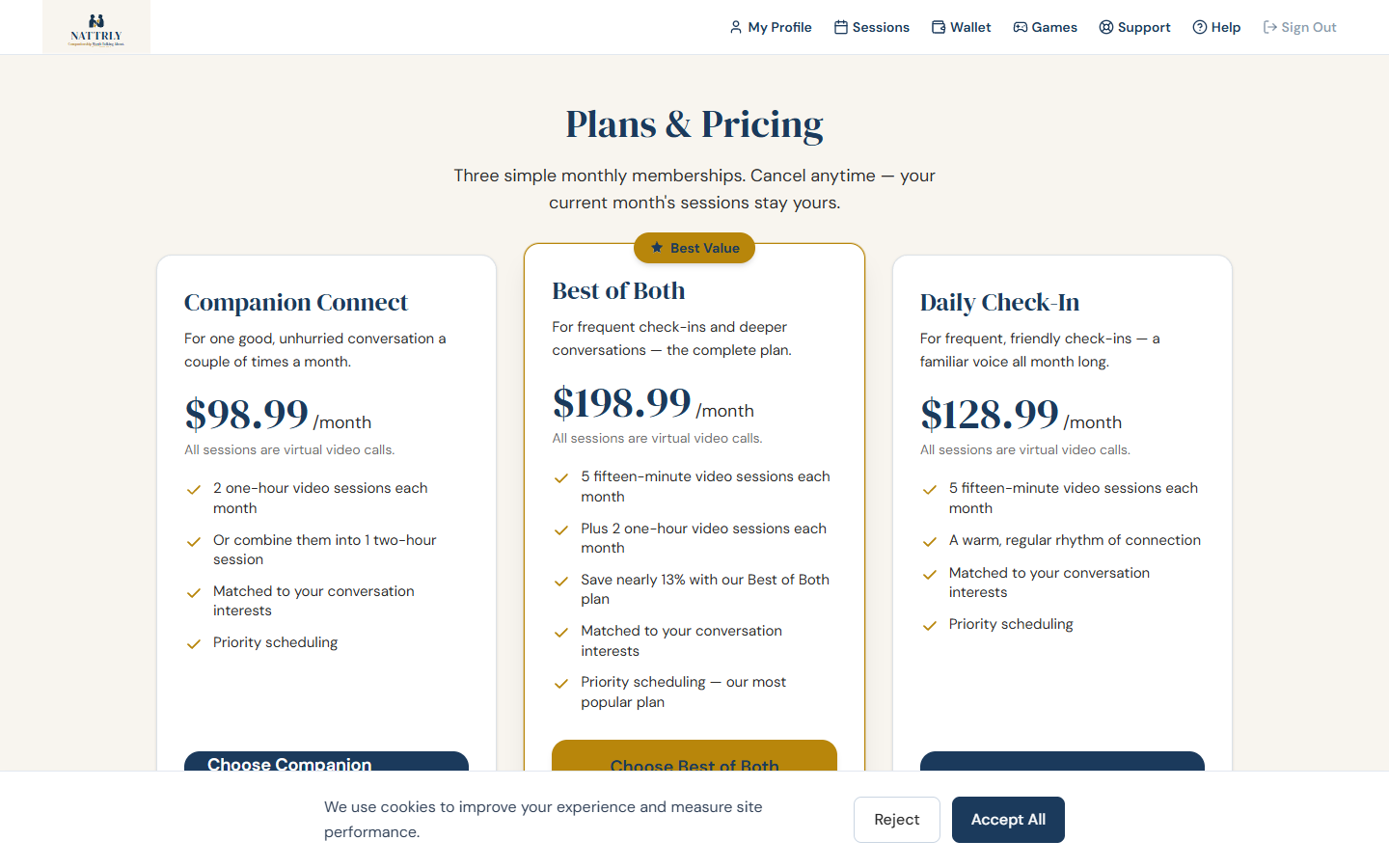
Three monthly plans, all virtual video sessions. See full details.
Companion Connect — $98.99/month
2 one-hour sessions (or combine into 1 two-hour session) each month.
Daily Check-In — $128.99/month
5 fifteen-minute sessions each month — frequent, friendly check-ins.
Best of Both — $198.99/month
5 fifteen-minute sessions plus 2 one-hour sessions each month. Our best value.
- Choose a plan from the Plans page
- All three plans renew automatically each month
- Your sessions refresh each month — a fresh allotment every billing period
- Change plans anytime as your needs change
- Cancel anytime — your current month's sessions stay available
7. Coupons & Discounts
Nattrly occasionally offers coupon codes for discounts on sessions.
- Enter your coupon code during the booking process (Step 7)
- Coupons can provide a percentage discount or a fixed dollar amount off
- Some coupons may cover 100% of the session cost — these are confirmed with a single tap
- Coupons may have restrictions (session type, minimum price, usage limits, expiration date)
- Coupons apply to any pay-as-you-go charges and special offers; standard plan sessions are already included in your membership
8. Attending a Session
In-Person Visits
- Your Trusted Companion will arrive at the scheduled time
- You'll see real-time status updates: En Route → Arrived → Session Started
- Welcome them and settle into a comfortable spot for conversation
- The SOS button is available on your session screen throughout
- When the session time is up, your Trusted Companion will wrap up and say goodbye
Virtual Calls
- When your session is about to start, a "Join Call" button appears in your Sessions page
- Click it — the video call opens directly in your browser (no app needed)
- Make sure your camera and microphone are enabled
- Use keyboard shortcuts: press M to mute/unmute, V to toggle video
- On mobile, you can flip between front and back cameras
- The SOS button is available during virtual calls too
- Tip: Use a well-lit, quiet space for the best experience
Session Reminders: You'll receive email reminders 24 hours and 1 hour before every session. When a session becomes active, a red badge appears on your Sessions tab.
Video coming soon
9. Safety & SOS
The SOS Button
- During any active session, the SOS button is visible on your screen
- Tap it once — all your emergency contacts receive an immediate SMS alert
- The alert includes your session details so contacts know where you are
- A Nattrly admin is also notified immediately to follow up
Trusted Companion Vetting
Every Trusted Companion on Nattrly has passed a rigorous 3-stage verification before being activated: (1) Pipl identity validation, (2) Au10tix ID document + face analytics, and (3) KIT Recon full OSINT background check — criminal records across all 50 states, federal databases, social network screening, facial recognition, and reverse image search. No exceptions.
Reporting a Concern
If you feel uncomfortable during a session, you can end it at any time. After the session, email [email protected] or call (888) 925-5855 to report any concern. We investigate all reports within 24 hours.
Video coming soon
10. Content Moderation
Your safety is our top priority. Nattrly uses AI-powered content moderation to keep virtual calls safe and respectful.
- During virtual calls, speech is transcribed and analyzed in real time by our safety AI
- If harassment, abuse, or threatening language is detected, the session may be automatically terminated
- Accounts involved in confirmed violations may be suspended pending review
- Transcription data is used only for safety monitoring and is not stored long-term
- In-person visits are not recorded or monitored — the SOS button is your safety tool for those sessions
Note: This system protects both members and Trusted Companions equally. If a session is terminated due to a content violation, your session credit is returned to your membership.
11. After Your Session
- Rate your experience — after the session completes, you can leave a 1–5 star rating and optional note
- Receipt — a receipt is automatically emailed to you. You can also view it in your session detail page
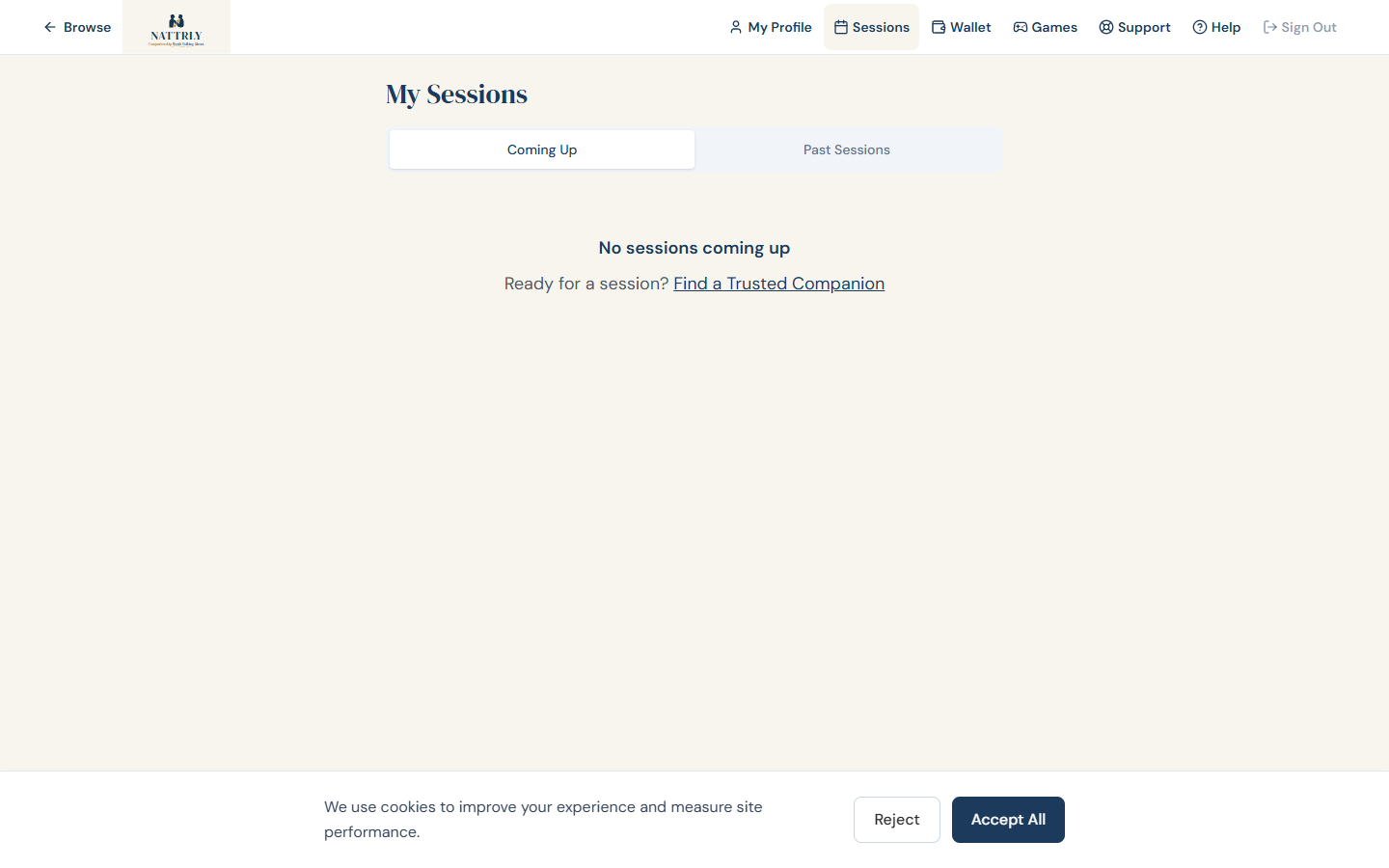
- Session history — view all past sessions in the Sessions tab under "Past"
- Rebook — loved your Trusted Companion? Save them with the heart icon and book again anytime
Early endings: If a session ends early (at the Trusted Companion's discretion or your request), you are only charged for the time used, rounded up to the nearest 15 minutes.
12. Favorites & Notes
Saving Favorites
- Tap the heart icon on any Trusted Companion card to save them
- Your favorites appear at the top of your browse page for easy rebooking
- Tap the heart again to remove a Trusted Companion from your favorites
Personal Notes
- Add a private note to any Trusted Companion's profile
- Only you can see these notes — the Trusted Companion cannot
- Great for remembering conversation topics, preferences, or things to discuss next time
13. Cancellation Policy
- If a booking is still pending (Trusted Companion hasn't accepted), you can cancel freely — your session credit is returned
- If a booking has been accepted and is 24+ hours away, you can cancel and your session credit is returned
- If an accepted booking is less than 24 hours away, contact [email protected] for cancellation assistance
- Bookings not accepted by 2 hours before the session are automatically cancelled and your session credit is returned
- If a Trusted Companion declines your booking, your session credit is immediately returned
- Returned sessions go back into your monthly membership so you can rebook
14. Getting Help